The three apps covered in this guide — Naver Map, Kakao Map, and Kakao Subway.
Three apps worth installing before a Busan trip — get English station names and directions sorted with Kakao Subway, then set up search and arrival alerts in Naver Map and Kakao Map.
Last checked September 10, 2026 — the apps' screens can change with updates.
The three apps covered in this guide — Naver Map, Kakao Map, and Kakao Subway.
Getting transit info right in Busan is easier with a few apps installed ahead of time.
Most tourists default to Google Maps, but since it's not built by a local company, it tends to be less accurate here — plenty of reviews back that up. I recommend trying a more accurate Korea-specific app instead of Google Maps.
So here are three apps worth installing before a Korea (Busan) trip:
Android and iOS screens may differ slightly, but the overall steps are similar (the screenshots below are from Android).
There are two reasons to use Kakao Subway. Korean place names can look unfamiliar in English, so knowing a station's official English spelling ahead of time helps both when riding the subway and when searching for it in a map app. It also shows the route, arrival time, and first/last train times all in one place.
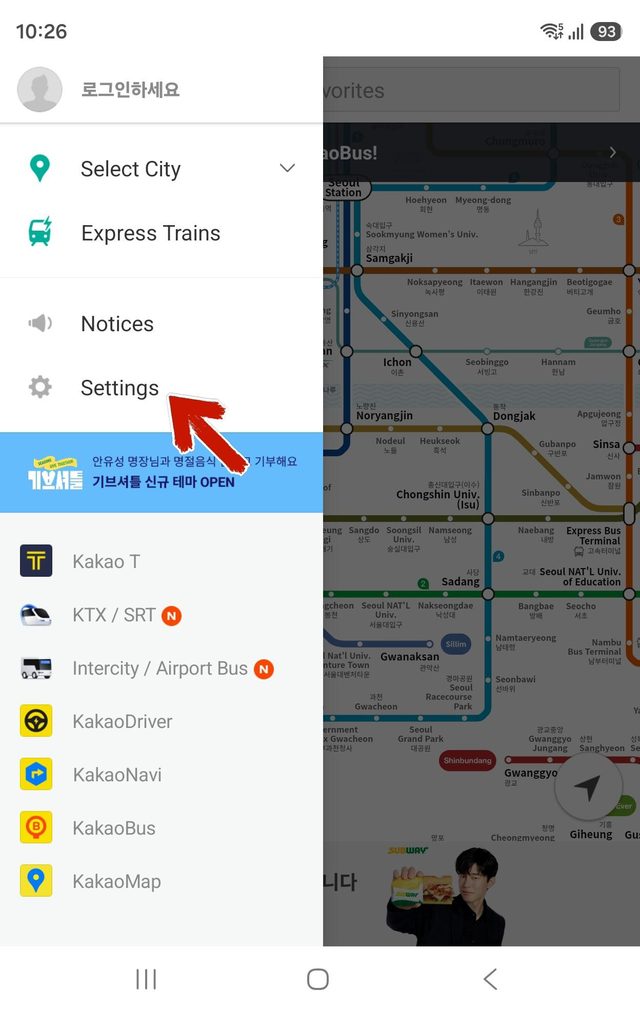
Install "Kakao Subway" from the app store. Only English and Korean are supported. Open the menu in the top left and go to Settings.
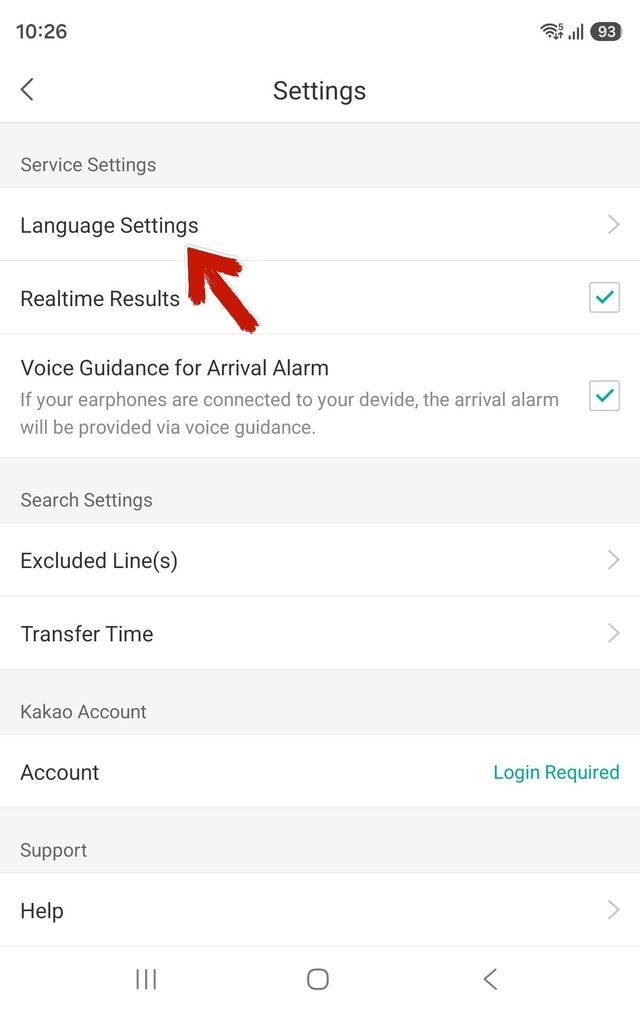
In Language Settings, set both Transit Map Language and App Language to English.
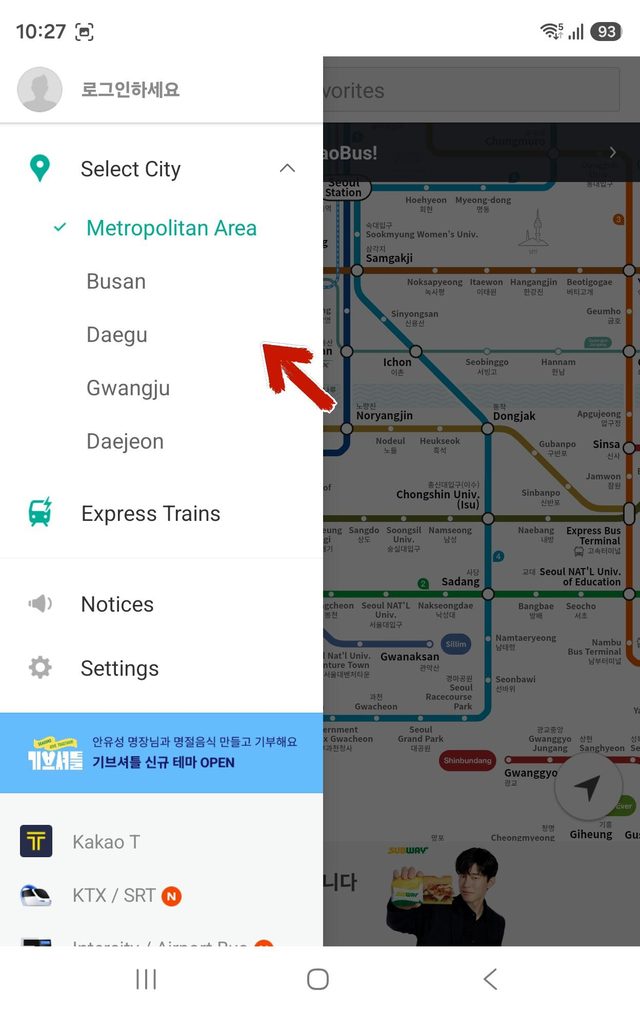
Choose Busan under Select City.
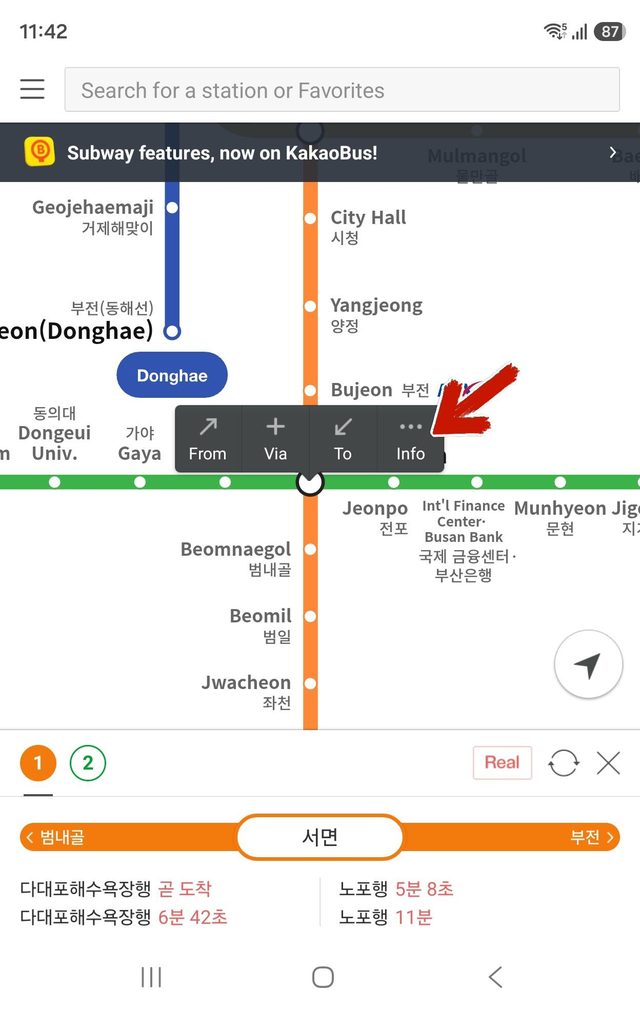
Tapping a station brings up From, Via, To, and Info all at once. Set your departure station as From and your destination as To.
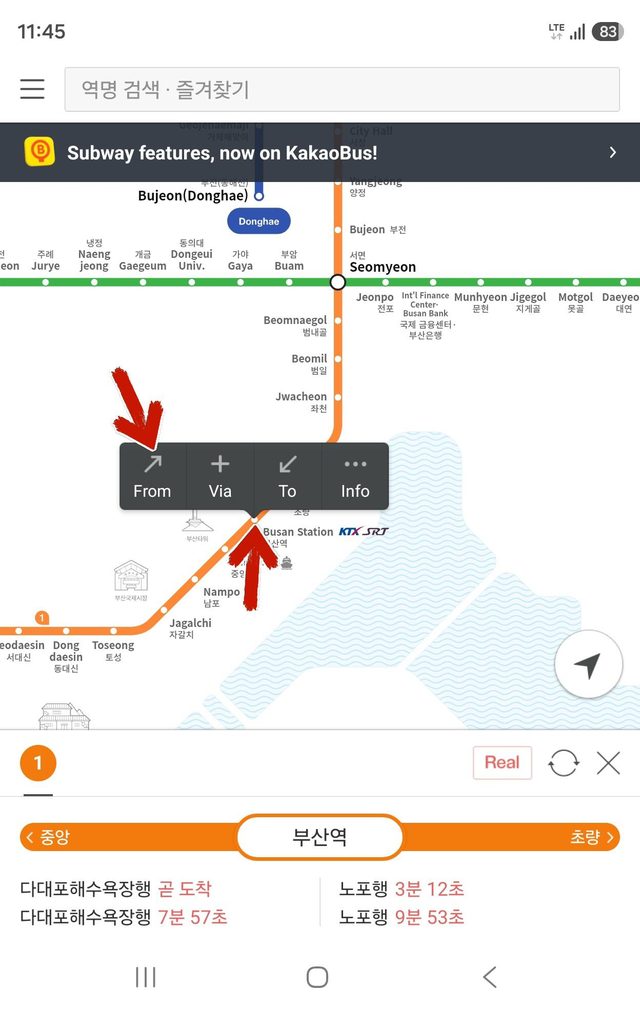
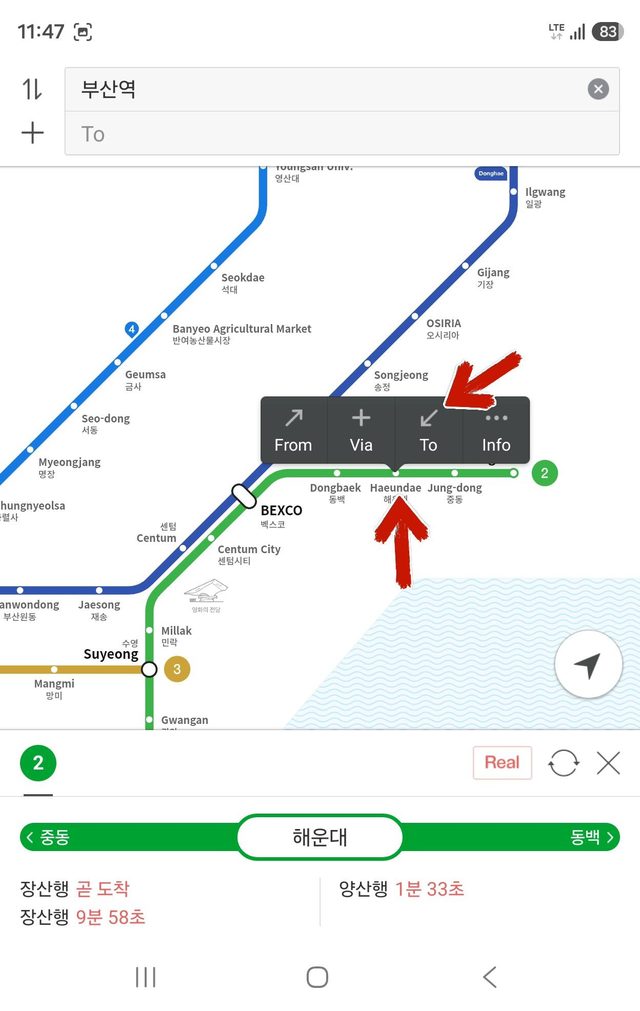
The search bar at the top only works in Korean. Since English search isn't supported, try tapping the station directly on the route map to set From/To.
You'll see travel time, fare, and transfer station info. Tap the map icon in the bottom right for a simple visual of the route.
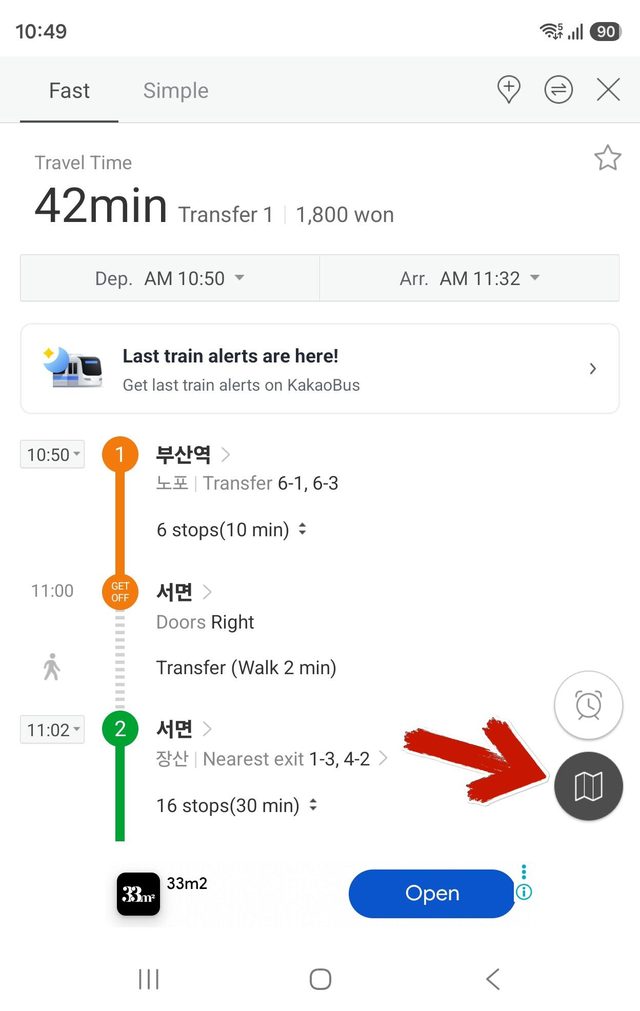
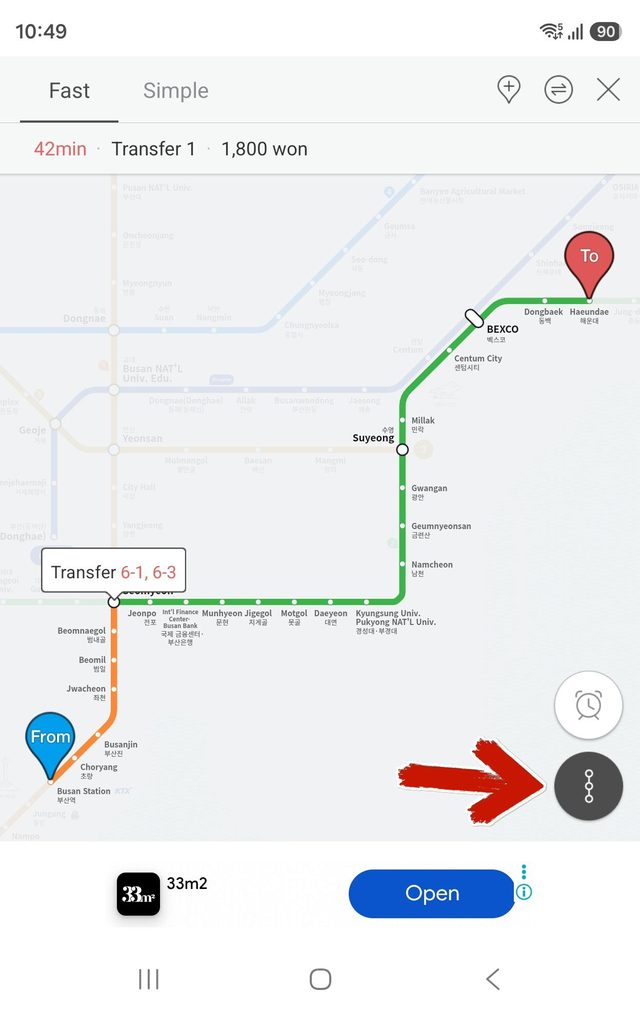
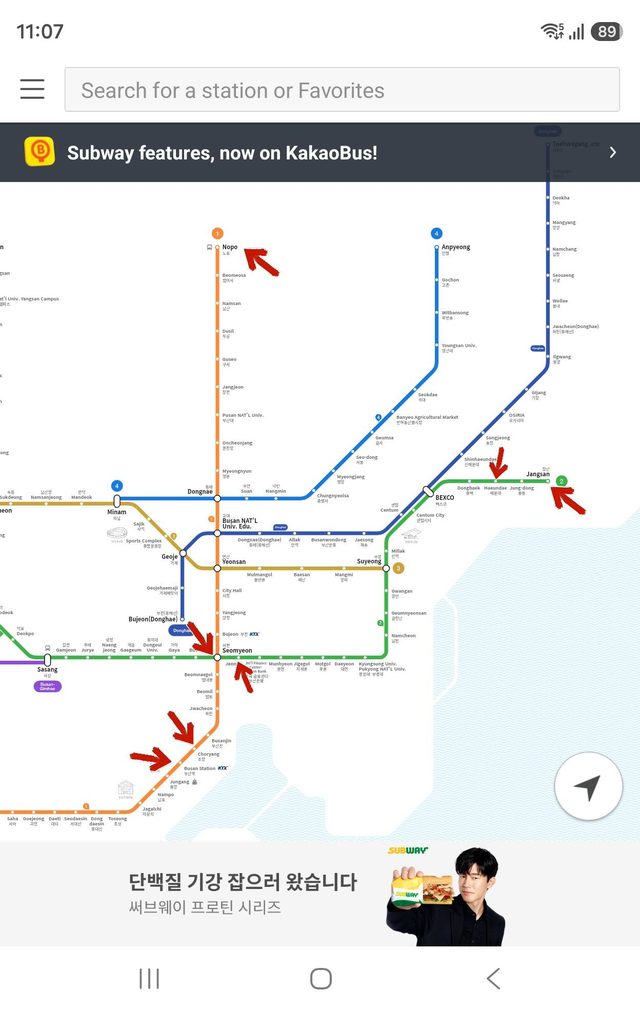
Figuring out which direction to go is usually the most confusing part of riding the subway. Each line in Korea has its own color, and locals often navigate by color too. To work out the direction, check the following:
Sometimes a major midway station is marked too, but knowing the above is usually enough to find your direction. Korean subway stations mark direction and transfer routes everywhere — on wall pillars, above the ticket gates, above the platform doors. For photos of real station signs, see How to Ride the Busan Subway Without Getting Confused.
| What | Line | Station |
|---|---|---|
| Next stop from Busan Stn | Line 1 | Choryang 초량 |
| End of Line 1 | Line 1 | Nopo 노포 |
| Transfer station | Line 2 transfer | Seomyeon 서면 |
| Next stop from Seomyeon | Line 2 | Jeonpo 전포 |
| End of Line 2 | Line 2 | Jangsan 장산 |
Take Seomyeon, a transfer station, as an example. Tap the station and info pops up — since it's a transfer station, you pick a line first. Tap Schedule to see the timetable.
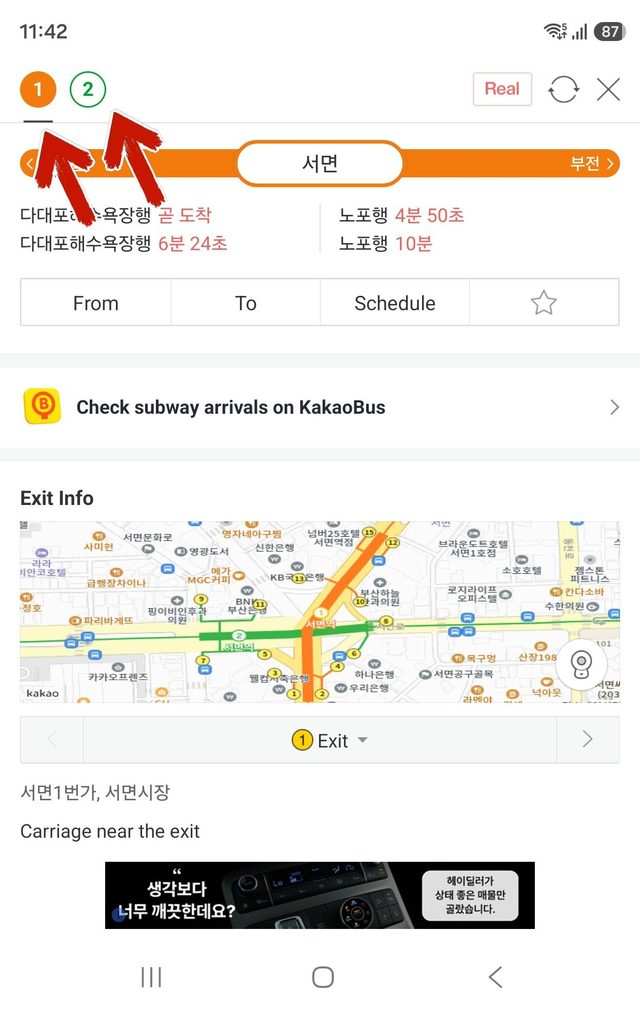
The schedule only shows in Korean. It's split into 평일 (weekday), 토요일 (Saturday), and 공휴일 (holiday) — Busan Transportation Corporation doesn't list Sunday separately, and Kakao Subway appears to follow the same convention.
Checking it directly, Line 1 and Line 2's first/last train times were identical on Saturdays and holidays, and it's safe to assume Sunday runs on the same schedule too. The total number of trains per day can be slightly lower on holidays than Saturdays, but that's not something a traveler really needs to worry about.
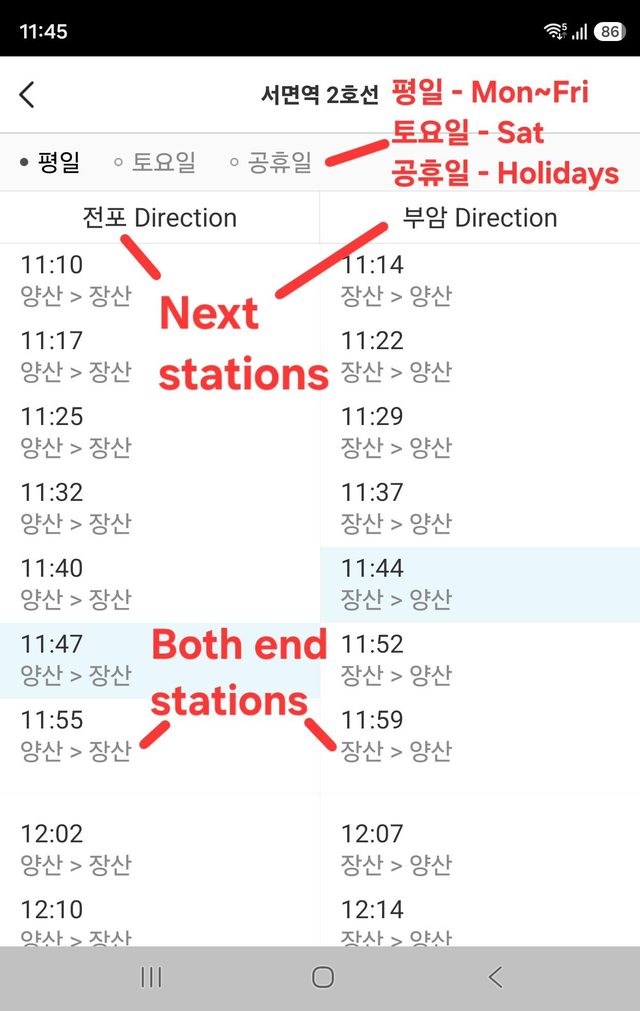
Based on actual screen captures from September 10, 2026. Menu locations and names may change with app updates.
Install "Naver Map" from the app store.
Change the language to English in settings.
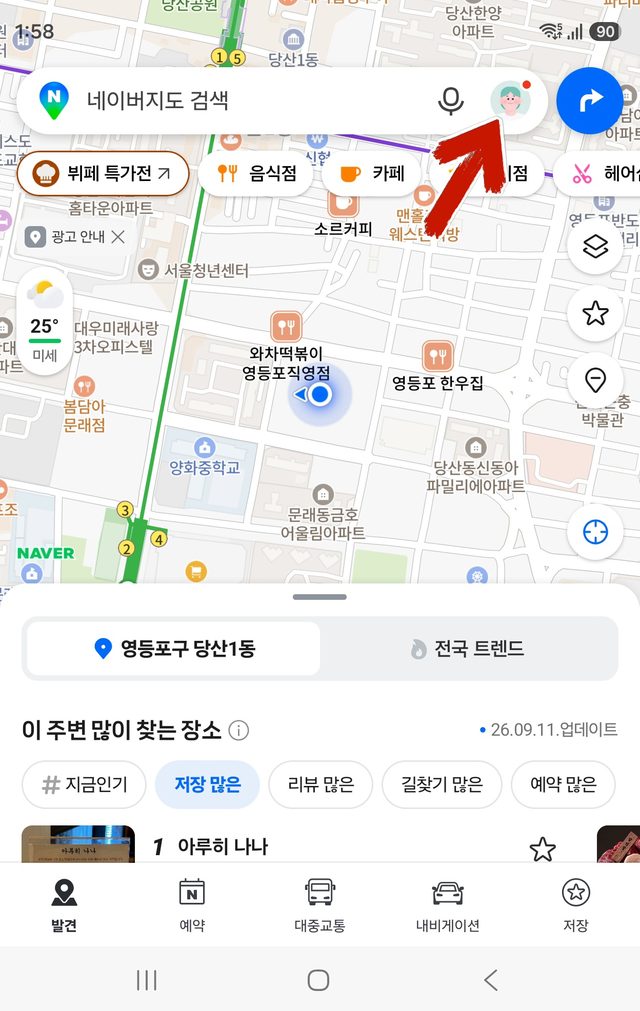
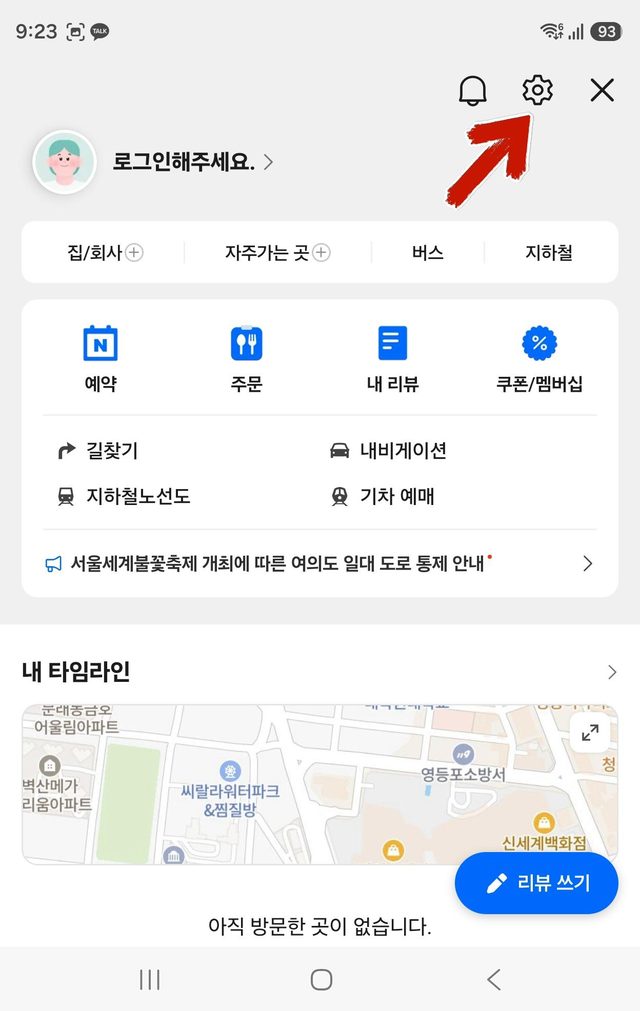
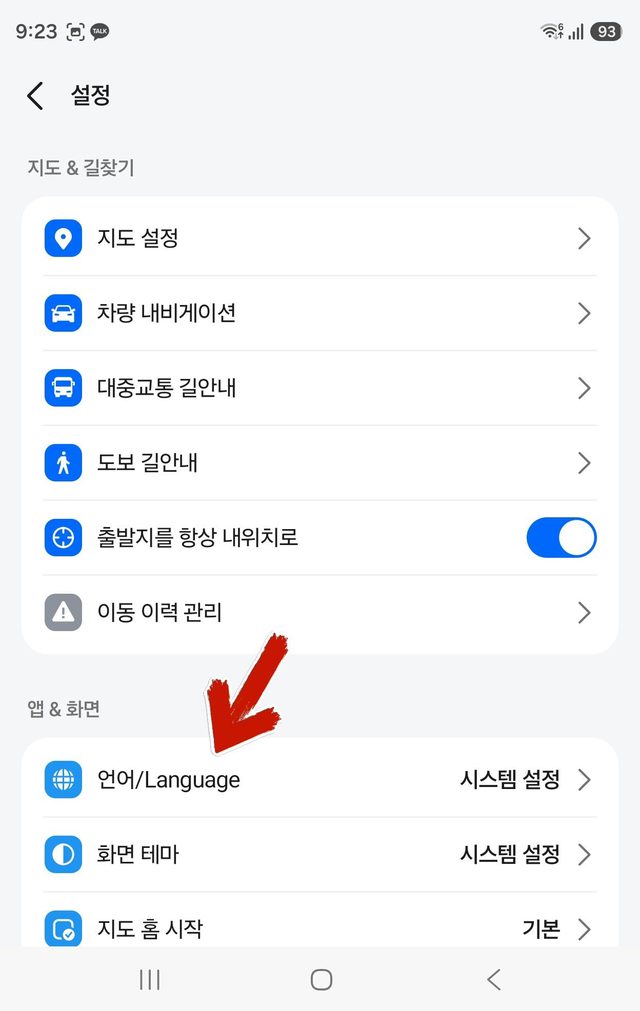
Try typing the region name in Romanized letters in the search bar. If you're trying to search for a subway station, use the English spelling shown in Kakao Subway — that cuts down on the trouble of not knowing the tricky Korean spelling.
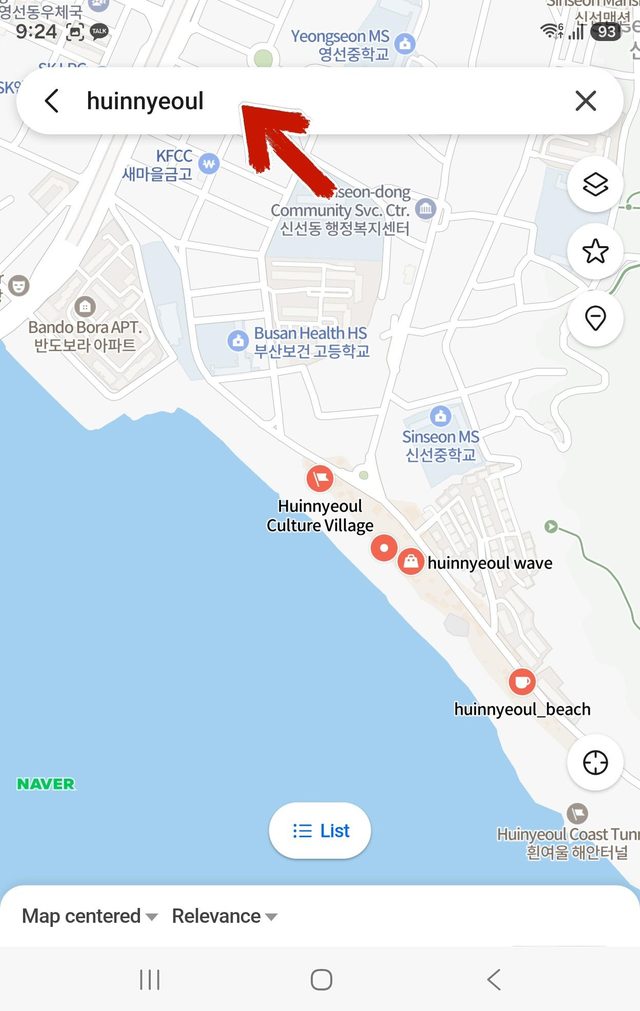
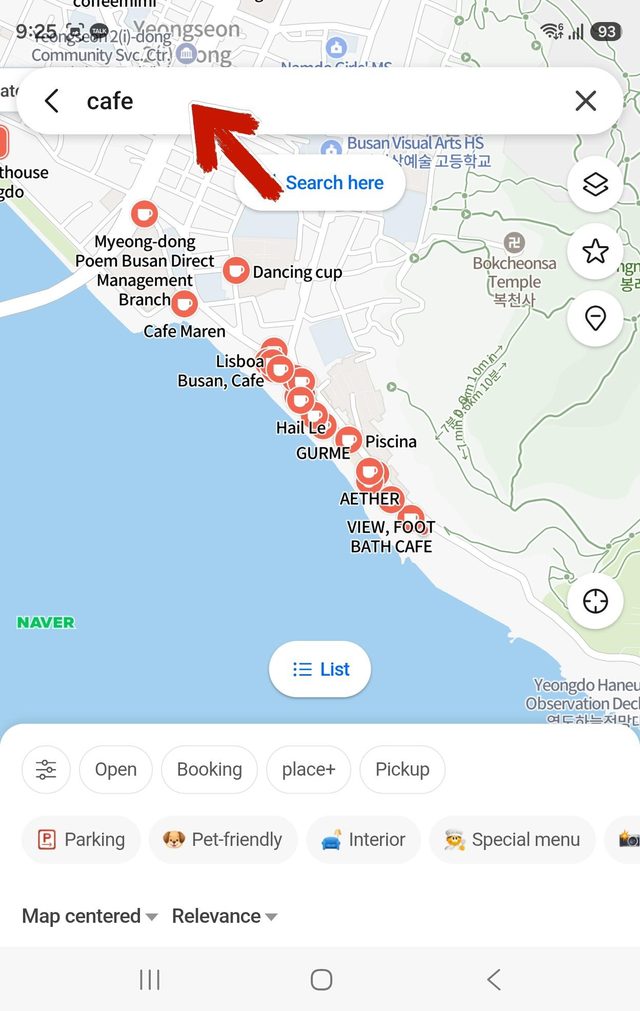
With the neighborhood you want already showing on screen, search a category like "cafe" and nearby spots show up with their English names. Keep in mind that if you search a keyword without first searching a destination, it searches based on whatever location the map is currently showing.
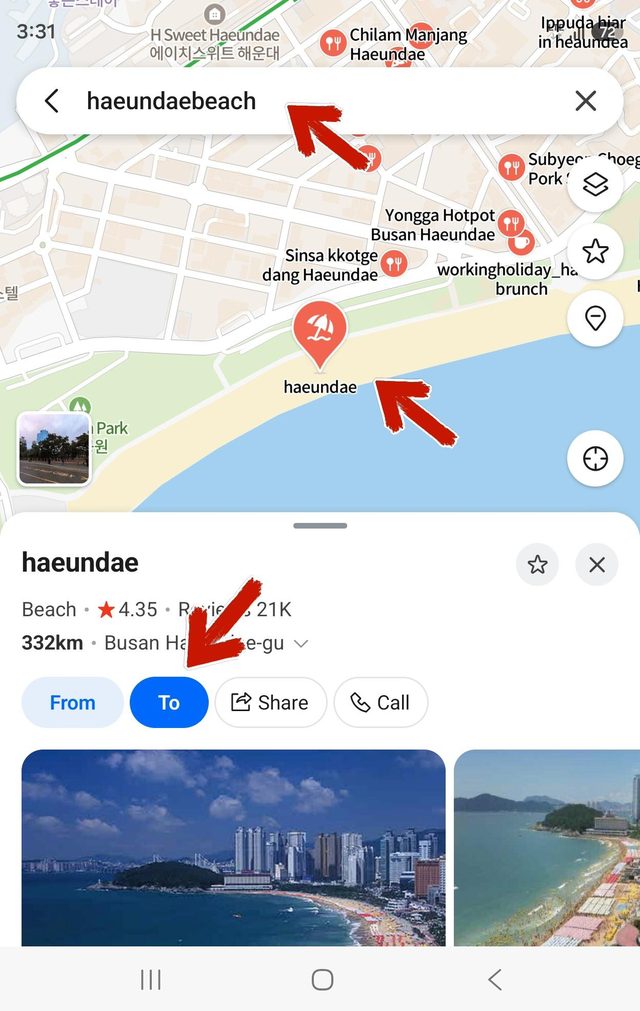
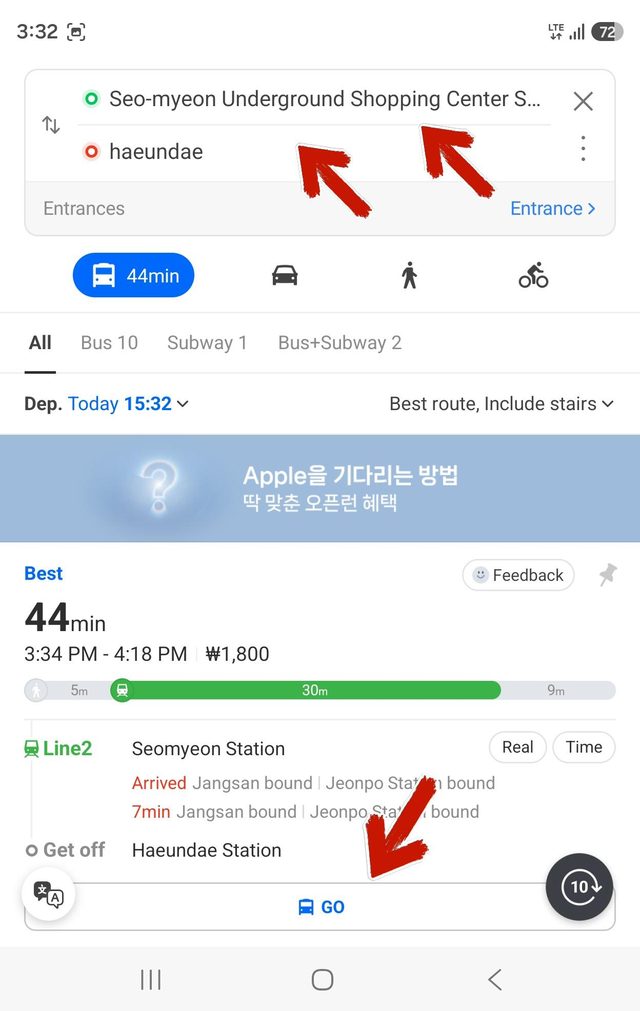
Search your destination, tap the pin, then set it as "To" — the available transit options will show up. Double-check that your starting point and destination are correct.
Pick one of the transit options and tap "Go" — it'll alert you before you reach your destination. To turn the alert off, tap "End directions" if it's showing; if not, it's in the menu at the bottom right.
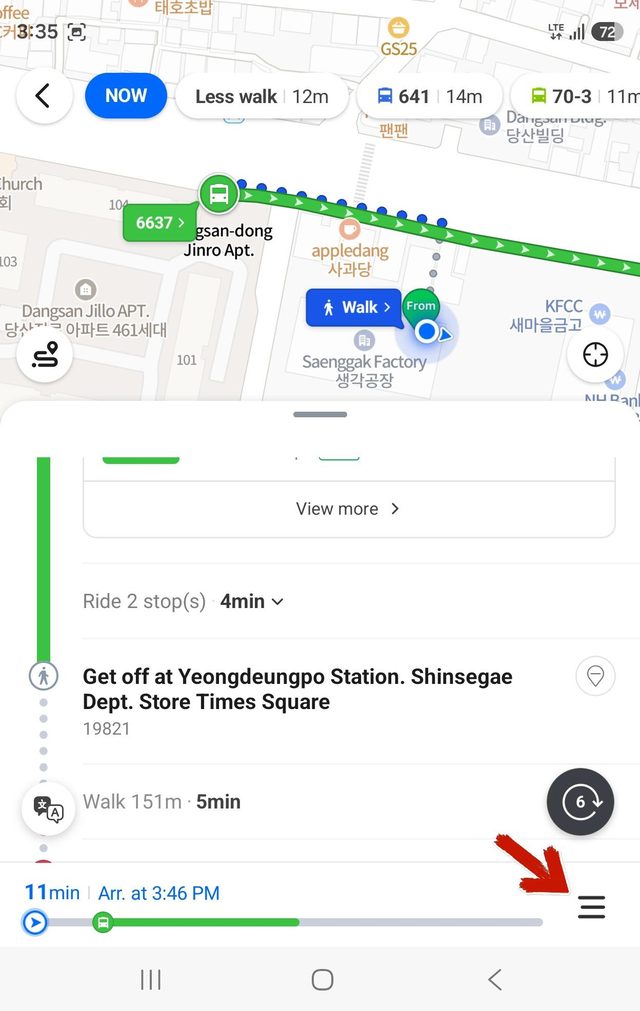
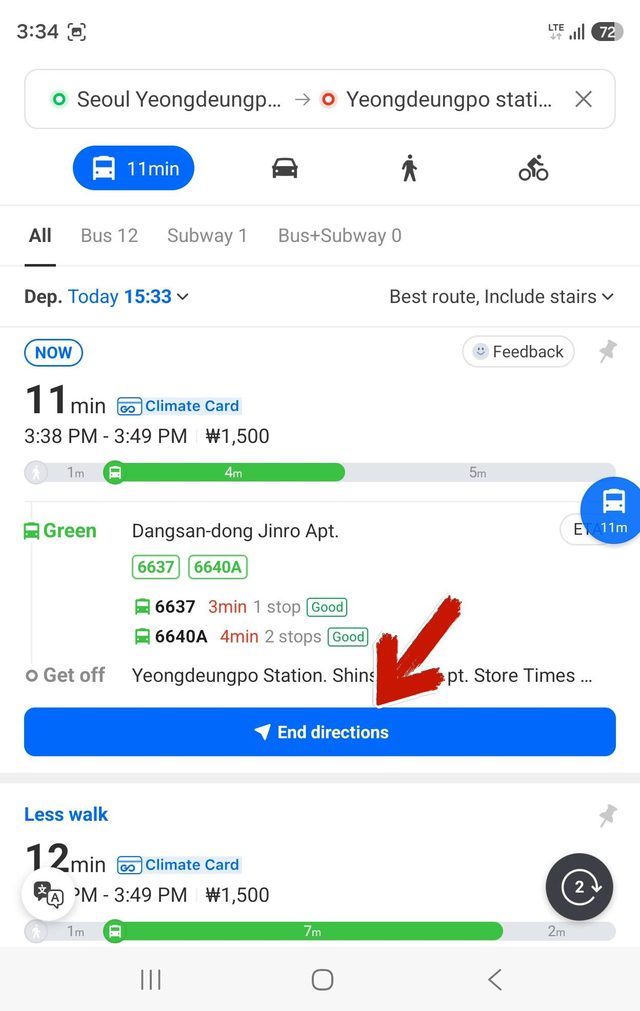
Since the subway runs underground, location tracking can be unreliable, and you might miss your stop. Treat the alert as a backup — it's safer to keep checking for yourself.
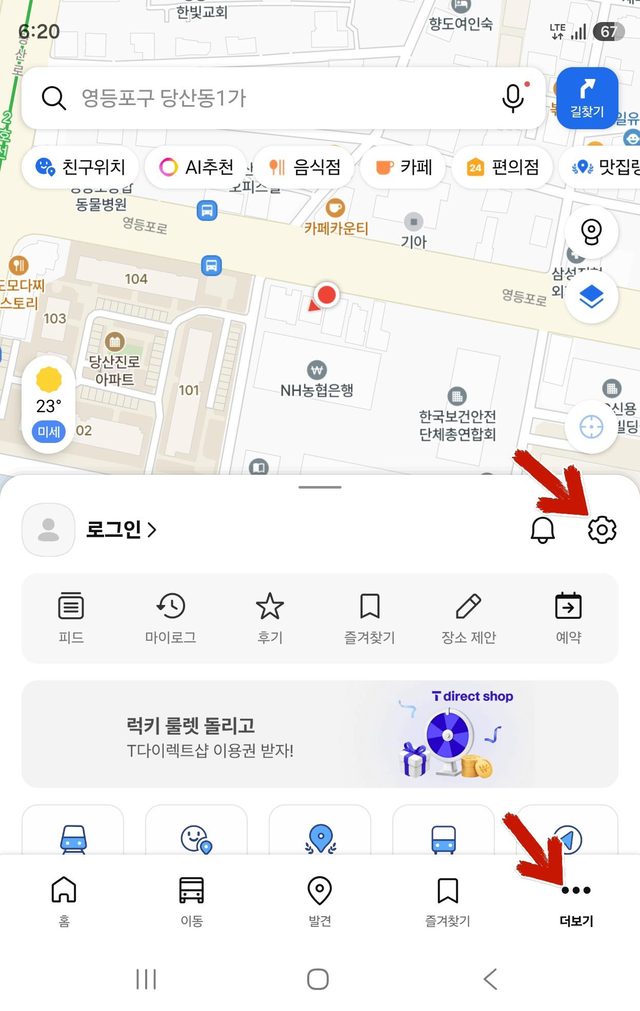
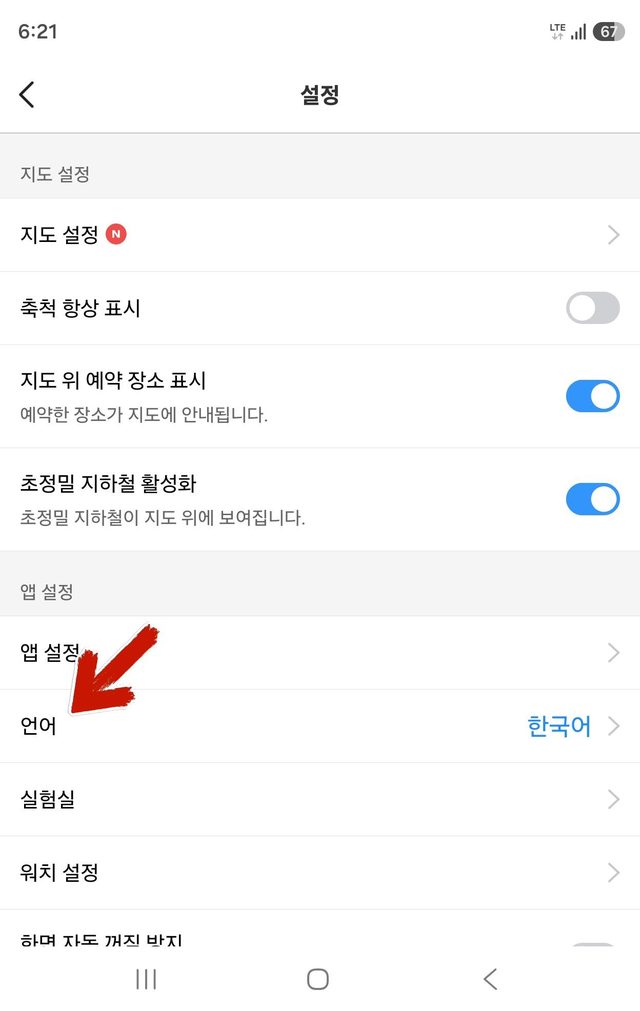
Tap the More (···) menu in the bottom right, then change the language from the gear (settings) icon. There's no English label reading "Language" — it's only written in Korean as "언어."
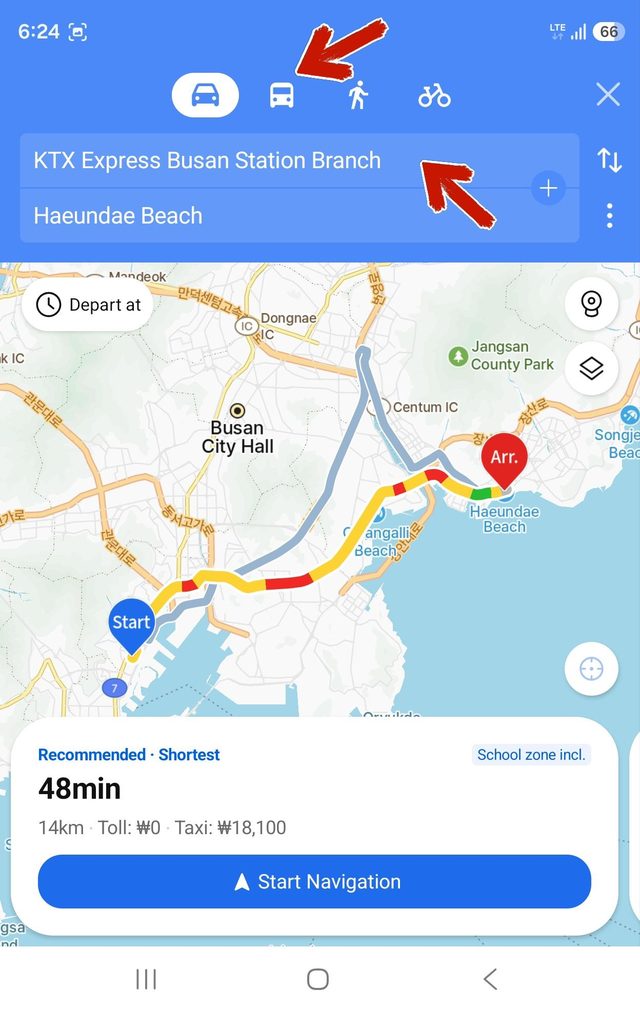
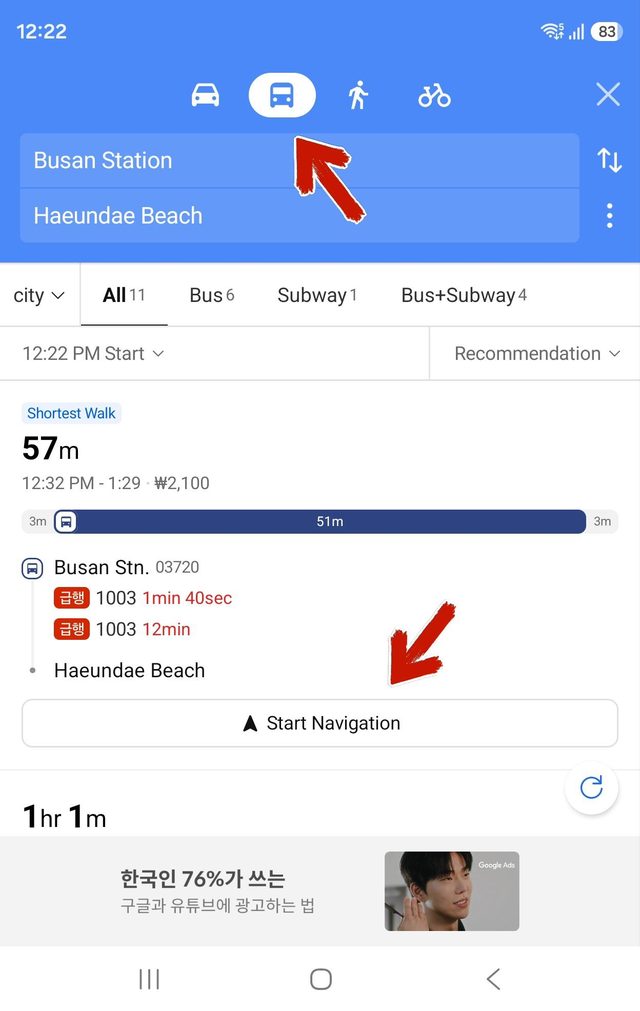
Set your destination as To and check that your starting point is right. One thing to know — the driving route shows first at the top, so tap the second, bus-shaped icon to see transit options. Unlike Kakao Subway, Kakao Map does support English search.
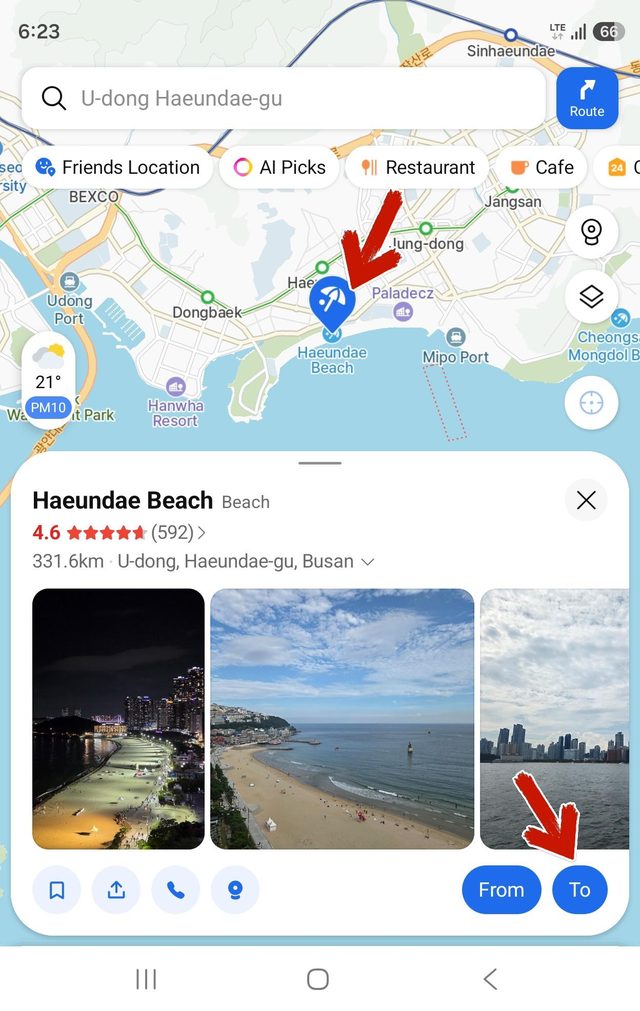
Choose a transit route, tap "Start Navigation" on the option you want, and just like Naver Map, it'll sound an alert once you're near your destination.
Based on actual screen captures from September 10, 2026. Menu locations and names may change with app updates.
Tap a keyword below to jump straight to related content.